File pre-processing errors with ClamAV
Inhaltsverzeichnis
Applies to:
Symptoms:
Several users report that after the file upload has finished, the following message is shown:

The following warnings may be shown in the logs:
WARN  yyyy-mm-dd hh:MM:SS FileProcessorService - ERROR: Could not connect to clamd on 127.0.0.1: Connection refused

WARN  yyyy-mm-dd hh:MM:SS FileProcessorService - ERROR: Could not connect to clamd on LocalSocket /var/run/clamav/clamd-socket: No such file or directory
Cause:
This behaviour may be caused by an unresponsive ClamAV daemon which fails to process incoming files. This leads to all files of all transfers with pre-processing enabled being rejected.
Solutions:
Check if minimum system requirements are met
Please check if your Cryptshare Server host system meets the following requirements, especially the amount of memory. Too few available memory is a well-known cause of ClamAV crashes.
- For Cryptshare Appliances: See this section for details.
- For other Linux-based installations: See this section for details.
Check if your distribution is up-to-date
Usually, the ClamAV packages are updated together with the Linux distribution. Please check if all your packages are up-to-date.
Cryptshare Appliance:
- Login to the Cryptshare Administration Interface.
- Open "Operating System" in the main menu.
- Check if a distribution upgrade is provided there.
- If yes, perform the distribution upgrade using the Administration Interface. See this section for details.
- If not, proceed with the following steps.
- Connect to your Cryptshare Appliance via SSH (as root).
- Execute the following command:
zypper update -y
- Proceed with solution "Restart ClamAV service" to assert that ClamAV is running correctly.
Other Linux distributions:
The actual update process depends on your Linux distribution. For example, on Debian/Ubuntu:
- Connect to your server via SSH.
- Execute the following commands:
sudo apt updatesudo apt upgrade -y
- Proceed with solution "Restart ClamAV service" to assert that ClamAV is running correctly.
Restart ClamAV service
First, check if the service is enabled. This keeps it started accross system reboots:
- Connect to your server via SSH.
- Execute the following commands:
systemctl status clamd- This should result in an output like this:
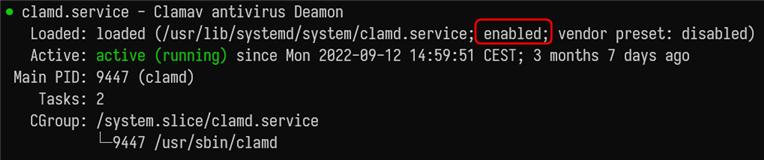
- If the output shows a "disabled" status instead, issue the following command:
systemctl enable clamd

Next, restart the ClamAV deamon:
- Execute the following command:
systemctl restart clamd- (This may take some seconds)
- If the command succeeded (no output), check the status of the service with:
systemctl status clamd
If the ClamAV service failed to start, check the following sections.
ClamAV failed to start with "Can't connect to clamd through /var/run/clamav/clamd-socket: No such file or directory"
This may occur if the ClamAV virus definitions were not updated successfully during an automatic update. Follow these steps to repair the definitions:
- Connect to your server via SSH.
- Execute the following commands:
systemctl stop clamdrm /var/lib/clamav/daily.*rm /var/lib/clamav/main.*freshclamsystemctl start clamd
- Check the ClamAV service status:
systemctl status clamd
ClamAV failed to start with "Job for clamd.service failed because a timeout was exceeded."
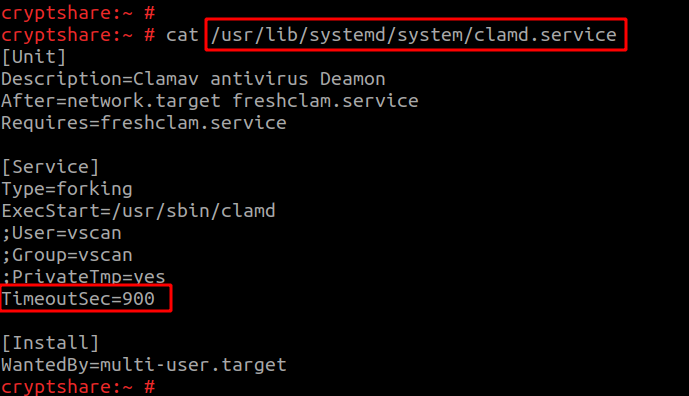
This occurs if the clamd service runs into a timeout while starting. Follow these steps to increase the timeout to 900 seconds:
- Insert the line TimeoutSec=900 in the File /usr/lib/systemd/system/clamd.service beneath the [Service] tag:
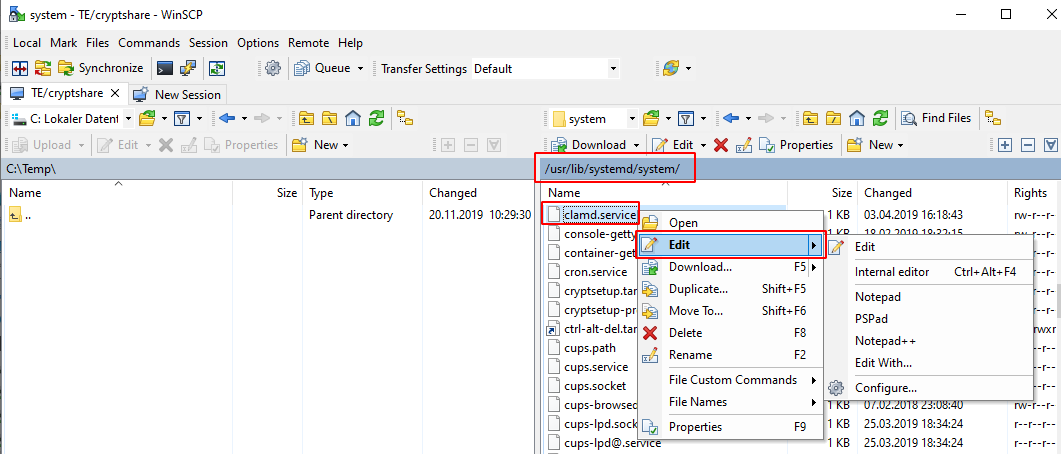
- WinSCP can also be used to edit the file: (https://winscp.net/eng/download.php)
- Execute the following commands:
systemctl daemon-reloadsystemctl start clamd


In Case The Issue Persists
In case the issue persists we can try adding the --fdpass flag to ClamAV within the Cryptshare. For this navigate to "Transfer Processing" -> "Pre-Processing". Here add the flag within the third input field and then click the "+" button on the right side. Then save changes. Please repeat these steps for any policies in use. 
Related Articles
Maximum File Size Was Changed, but the New Limit Is Not Applied
Problem You have changed the maximum file size in the system settings, but users are still unable to send or upload larger files. This behavior usually occurs when active policy rules are still using the old upload limits. Cause In Cryptshare, policy ...Error codes in Cryptshare for Notes
Cryptshare for Notes Error Codes The following table lists the error codes and generic message texts that are returned by the Cryptshare Server or the Crpytshare for Notes application. 10 The requesting product is not licensed: xyz The Cryptshare ...Cryptshare doesn't start after rollback to previous version
Applies to: All versions of Cryptshare Server Symptom: After rolling back to a previous version the Cryptshare Server is not available. Cause: The Java installation folder has not been restored. Solution: There are three approaches to restore Java: ...Migrating Cryptshare
Applies to: All versions of Cryptshare Server Purpose: This article guides you through a Cryptshare Server migration. Solution: Be sure that your Cryptshare Server is running at least version 4.3.0 before proceeding. If not, please update as ...Cryptshare Server running on Hyper V is not available
Inhaltsverzeichnis 1 Applies to 2 Symptom 3 Cause 4 Solution Applies to All versions of Cryptshare Server running on Hyper-V. Symptom Cryptshare Server is not available in web browser and over SSH connection. On the console multiple errors are shown ...